How to Copy and Paste on a Chromebook? The Ultimate UK Guide
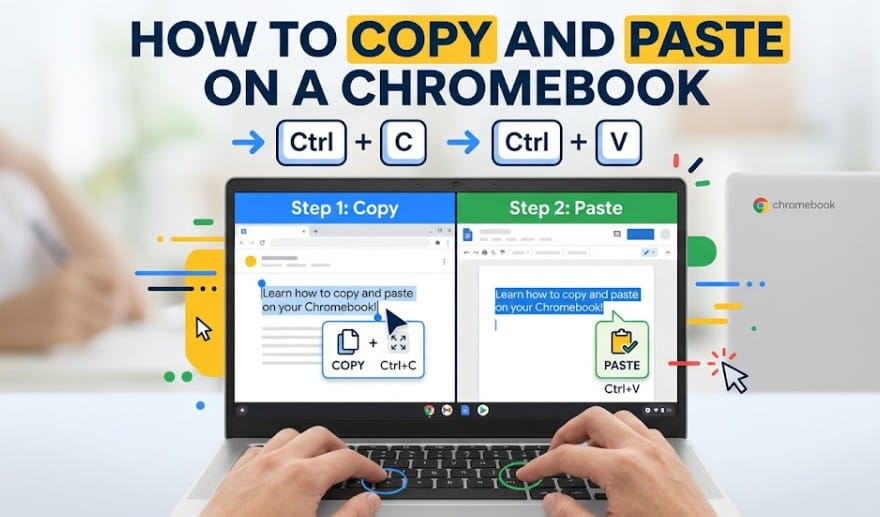
To copy and paste on a Chromebook, highlight your content and press Ctrl + C to copy, then Ctrl + V to paste. This straightforward process uses the system clipboard to temporarily store data in the device’s memory, allowing for seamless transfers between web tabs, documents, and local files.
Swapping from a standard Windows PC or Mac to a ChromeOS device often comes with a bit of a learning curve.
Because Google’s lightweight hardware leans so heavily on multi-finger trackpad gestures and a unique keyboard layout, daily actions like moving text around can feel slightly unfamiliar at first glance.
How to copy and paste on a Chromebook?
To copy and paste on a Chromebook, highlight the text or file, then press Ctrl + C to copy it. Move your cursor to the destination and press Ctrl + V to paste. Alternatively, tap the trackpad with two fingers to right-click and select the commands from the dropdown menu.
The Basics of the ChromeOS Clipboard System
To copy and paste on a Chromebook, highlight your content and press Ctrl + C to copy, then Ctrl + V to paste. This straightforward process uses the system clipboard to temporarily store data in the device’s memory, allowing for seamless transfers between web tabs, documents, and local files.
In the UK, where many small business owners use Chromebooks for administrative tasks, mastering these quick-action commands reduces the time spent on repetitive data entry.
Staying efficient is vital, especially when keeping up with Key Trends in Application Development that are currently shaping how cloud-based platforms like Google Workspace or Microsoft 365 operate.
How to copy and paste on a Chromebook with a keyboard?
By highlighting your target content and pressing Ctrl + C, you store the data. Navigating to your destination and pressing Ctrl + V executes the paste. This works natively in the Chrome browser, the Files app, and most Android applications installed on the device.
The most reliable way to move text or files is by using dedicated keyboard shortcuts. These remain exactly the same whether you’re using a Lenovo, HP, or Acer model.
While the shortcuts are universal across ChromeOS, using the physical keys is still the gold standard for getting work done quickly without any faff.

Standard Keyboard Command Sequences
For those transitioning from other operating systems, the Ctrl key is your primary anchor. While the physical location of the key is identical to Windows laptops, the response time on a Chromebook is often faster due to the lightweight nature of the OS.
-
Highlighting: Use the trackpad to drag over text, or hold Shift and use the Arrow Keys for precise character selection.
-
The Copy Action: Press Ctrl and C simultaneously.
-
The Paste Action: Press Ctrl and V to place the content.
-
The Cut Action: Press Ctrl and X to move text from one location to another.
Chromebook Shortcut Comparison Table
To streamline your workflow, use this cross-platform reference guide to master ChromeOS commands. These shortcuts are essential for maintaining productivity when transitioning from a traditional Windows environment to a Chromebook.
| Action | Chromebook Shortcut | Windows Equivalent | Best Business Use Case |
| Basic Copy | Ctrl + C | Ctrl + C | Copying email addresses |
| Basic Paste | Ctrl + V | Ctrl + V | Pasting into a spreadsheet |
| Paste Plain Text | Ctrl + Shift + V | Ctrl + Shift + V | Matching document formatting |
| Open Clipboard | Search + V | Win + V | Accessing multiple recent clips |
| Copy URL | Ctrl + L, then Ctrl + C | Alt + D, then Ctrl + C | Sharing website links quickly |
Unlike traditional laptops, ChromeOS 128+ supports a multi-entry clipboard that stores up to five unique items simultaneously, accessible via the Search + V command for bespoke workflow management.
How to copy and paste on a Chromebook without a mouse?
If you’re working on the go and don’t have an external mouse plugged in, you’ll need to master the trackpad. Many UK users find the lack of a physical right-click button a bit jarring at first, but it’s easily solved with a two-finger tap.
Follow these precise steps to master trackpad-based selection and placement:
-
Navigate the cursor to the start of the text you wish to copy.
-
Tap and hold the trackpad with one finger while moving a second finger to highlight the area.
-
Tap the trackpad with two fingers simultaneously to trigger the Right-Click menu.
-
Choose the Copy option from the visual dropdown menu that appears
-
Move your cursor to the destination field (e.g., a Google Doc or email).
-
Perform another two-finger tap on the trackpad.
-
Select Paste from the menu to complete the transfer.

The Alt-Click Alternative
Operational feedback from UK freelancers suggests that the two-finger tap can be temperamental depending on the trackpad’s sensitivity settings. Seasoned users often bypass gesture issues by adopting the Alt-click method, which provides a more tactile response on older hardware.
By holding the Alt key and tapping the trackpad once, you force the context menu to appear. This is particularly useful on older Acer or HP models where trackpad palm rejection might interfere with multi-finger gestures.
How to copy and paste images on a Chromebook?
To copy a web image, tap the trackpad with two fingers (right-click) on the picture and select Copy Image. To paste it, navigate to your document or folder and press Ctrl + V. For local images, highlight the file in the Files app and use Ctrl + C.
- Copying from Web: Right-click (two-finger tap) the image and select Copy Image to move it to your clipboard.
- Copying from Files: Highlight the file in your ‘Downloads’ folder and use Ctrl + C.
- YouTube Specifics: To share a visual, right-click the video player to Copy Video URL at the current time. For those needing to extract media for offline use, tools like SaveTT can be useful for managing content for collaborative UK business briefings.
Does the copy-paste process change on Lenovo, Acer, or HP hardware?
No, the software shortcuts remain identical across all brands, but physical execution varies by hardware.
Premium models with glass trackpads offer smoother multi-finger gestures, budget models require a firmer physical click, and 2-in-1 touchscreen flip models switch to a long-press visual menu when folded into tablet mode.
Device-Specific Considerations
If you are currently auditing hardware requirements for a new UK-based team, prioritising devices with haptic feedback trackpads can significantly reduce input errors.
A common pattern is that Flip or 2-in-1 models (like many Lenovo Ideapads) automatically change the copy-paste UI when folded into tablet mode, replacing keyboard shortcuts with long-press touch icons.
Advanced ChromeOS Clipboard Features
Advanced ChromeOS clipboard features include a native clipboard history manager that saves your last five copied items, accessible via Search + V.
Additionally, special terminal overrides (Ctrl + Shift + C/V) allow seamless command-line copying, and cross-subsystem syncing lets you share clipboard data directly with sandboxed Android applications.
For UK web developers and small business tech leads, the Linux Development Environment (codenamed Crostini) is a vital tool.
What is the Crostini Factor (Linux)?
For UK web developers, the Linux terminal (Crostini) handles the clipboard differently to prevent accidental command termination.
Inside a Linux terminal, the standard Ctrl + C is often reserved for Interrupt commands (stopping a running process). To copy and paste text within the Linux container, you must use:
-
Copy in Linux: Ctrl + Shift + C
-
Paste in Linux: Ctrl + Shift + V
This distinction is critical to prevent accidental command termination while managing server code or database entries.
How does Android Subsystem Sync handle clipboards?
Modern Chromebooks run Android apps in a sandboxed subsystem. While ChromeOS has improved the Shared Clipboard feature, moving data between a Chrome browser tab and an Android app (like the mobile version of Slack, Instagram, or WhatsApp) can occasionally result in formatting loss.
If you copy text in a browser and it won’t paste into an Android app, a common fix is to paste the text into a simple Text file or Google Doc first to strip the hidden CSS, then re-copy it. This ensures the Android Subsystem recognises the data string correctly.
The Evolution of the Launcher Key in 2026
The Everything Button, historically the Search or Launcher key, has undergone a significant evolution in 2026. Beyond just opening the app drawer, it now serves as the primary modifier for Global Search copying.
By tapping the Everything Button and typing a query, you can now right-click directly on search results within the launcher to Copy Answer without ever opening a browser window.
This 2026 update, influenced by the rise of tools like Alaya AI, is designed to save precious seconds for researchers and administrators.
Why has my Chromebook stopped letting me copy and paste?
It’s incredibly frustrating when a basic feature like the clipboard has a spot of bother. If you find your Chromebook copy and paste isn’t working, it’s usually down to a minor software glitch or a specific permission setting rather than a broken keyboard.
For instance, if you encounter a Your Organisation’s Data Cannot Be Pasted Here error, it is often related to management policies rather than a hardware failure.
Common Quick-Fix Solutions for ChromeOS Clipboard Errors
If your clipboard isn’t behaving, it is usually due to a minor software glitch or a disabled gesture setting rather than a hardware fault.
Follow this guide to troubleshoot and resolve the most common copy-paste interruptions on ChromeOS.
| Problem | Likely Cause | Recommended Fix |
| Ctrl + V does nothing | The clipboard is empty, or the RAM is full | Restart the browser or clear your cache. |
| The right-click menu won’t appear | Trackpad settings disabled | Go to Settings > Device > Touchpad > Enable Tap-to-click. |
| Formatting is messy | CSS conflicts from the source | Use Ctrl + Shift + V to strip formatting. |
| Clipboard History is empty | Feature not enabled | Ensure you are on a modern version of ChromeOS (v89+). |
Can you copy and paste on a Chromebook without using the Ctrl key?
Yes, if you prefer using a visual menu or have accessibility needs that make keyboard shortcuts difficult, you can use the Graphical User Interface (GUI). Most web apps feature an Edit menu at the top. Simply click Edit, then Copy or Paste to bypass the keyboard entirely.
Understanding Secondary Shortcuts
-
What is Ctrl + L? Highlights the address bar instantly for easy copying of URLs.
-
What is Ctrl + A? Selects all content on a page, vital for large data migrations.
-
What is Ctrl + Shift + Q? A warning for UK users: this logs you out. Do not use this for copying!
Debunking Common Chromebook Clipboard Myths
Many UK users find the switch to ChromeOS slightly confusing because of the hardware tweaks, but most missing features are just tucked away behind clever gestures.
By clearing up these common misconceptions, you can speed up your daily workflow and cut out the administrative faff.
Optimising Your ChromeOS Workflow for Long-Term Success
Mastering the copy-and-paste function on a Chromebook is the first step toward professional proficiency on ChromeOS.
For UK small business owners, the shift from Windows-style clicking to ChromeOS gestures, specifically the two-finger tap and Search + V clipboard history, is a significant productivity multiplier.
If you are experiencing issues, start by checking your trackpad settings and ensuring your device is up to date with the latest version of ChromeOS.
FAQ
How do I enable copy and paste on Chrome?
Copy and paste is enabled by default. If it fails, check Site Settings in Chrome to ensure JavaScript isn’t blocked, as some sites use scripts to prevent content theft.
Why can’t I right-click on Chromebook?
Chromebooks do not have a physical right-click button. You must tap the trackpad with two fingers or hold the Alt key while clicking with one finger.
What is the shortcut for clipboard history?
Press the Search key + V. This opens a menu showing your last five copied items, allowing you to select and paste older snippets.
How do you copy and paste on a touchscreen?
Long-press on a word to highlight it, drag the blue handles to select more text, and tap Copy from the floating menu that appears.
Why is Shift F3 not working?
On a Chromebook, function keys are replaced by top-row shortcut keys. To use F-keys, you must hold the Search key while pressing the corresponding top-row button.
How do I paste without formatting?
Use Ctrl + Shift + V. This is the best way to ensure copied text matches the font and size of your current document.
Can I copy images directly into folders?
Yes. Copy the image from the web, open the ‘Files’ app, navigate to your desired folder, and press Ctrl + V.
Can I copy text from a locked PDF on a Chromebook?
No. If a PDF has security restrictions, ChromeOS will block the copy command. You may need to use an OCR tool or request an unlocked version of the document to move the text successfully.